Create shared meeting notes
(for owners and hosts)
See a step-by-step guide on how to create and share meeting notes during your meetings.
Open Meeting Notes
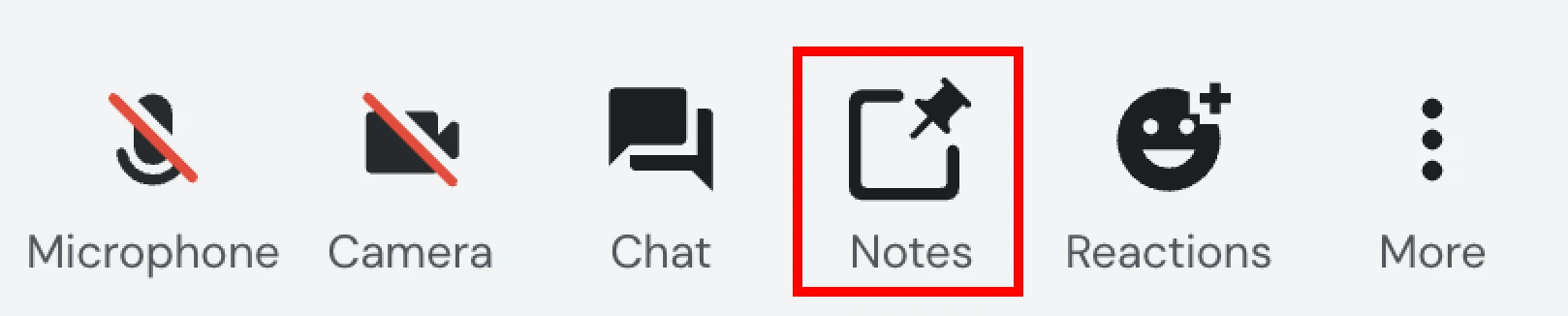
From the meeting screen, open the notes by selecting the Notes option in the toolbar. This will open the shared notes panel for your meeting.
Start Writing Your Notes
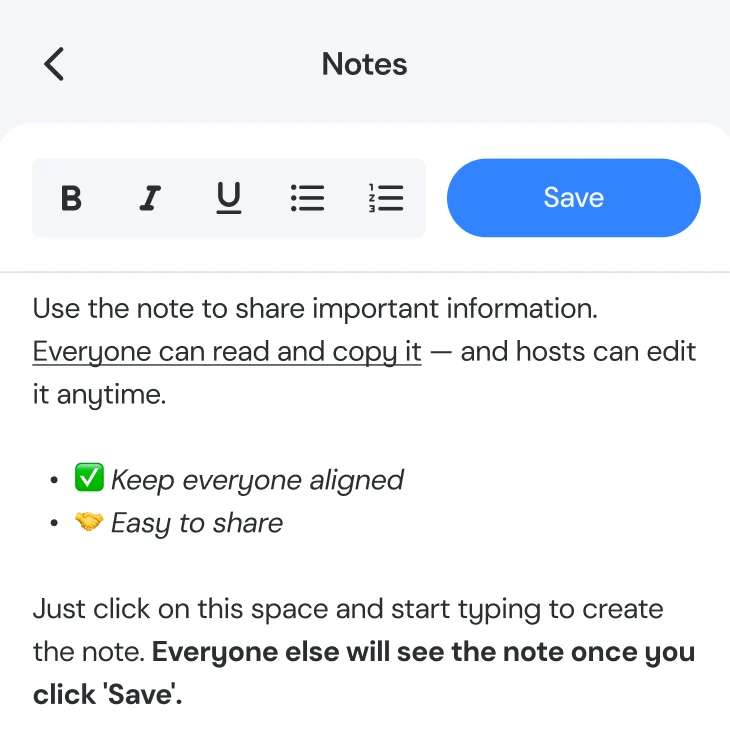
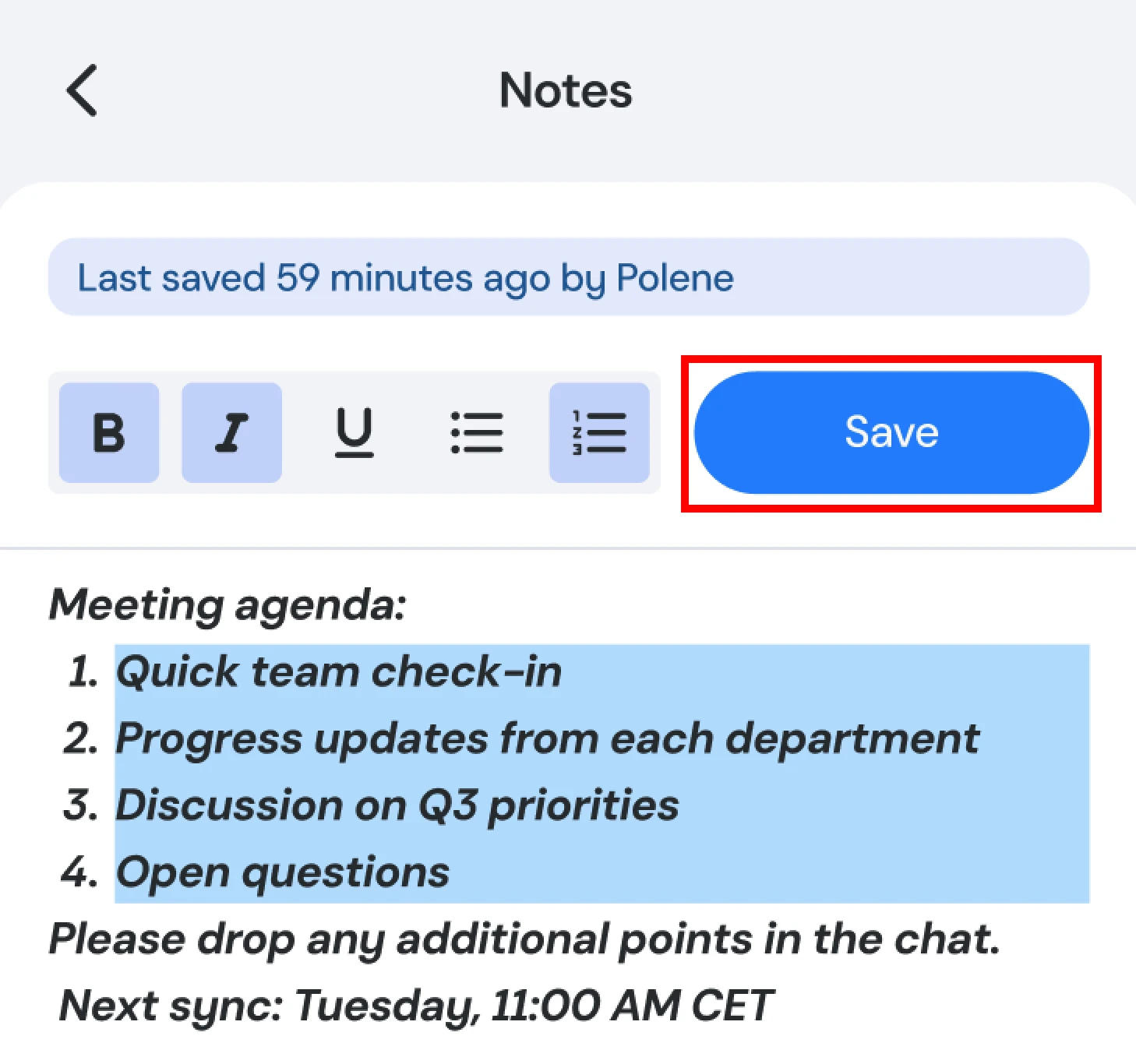
Begin typing your notes in the editor. You can freely edit the text, add details, and adjust the content to match the flow and purpose of your meeting.
Publish Your Notes
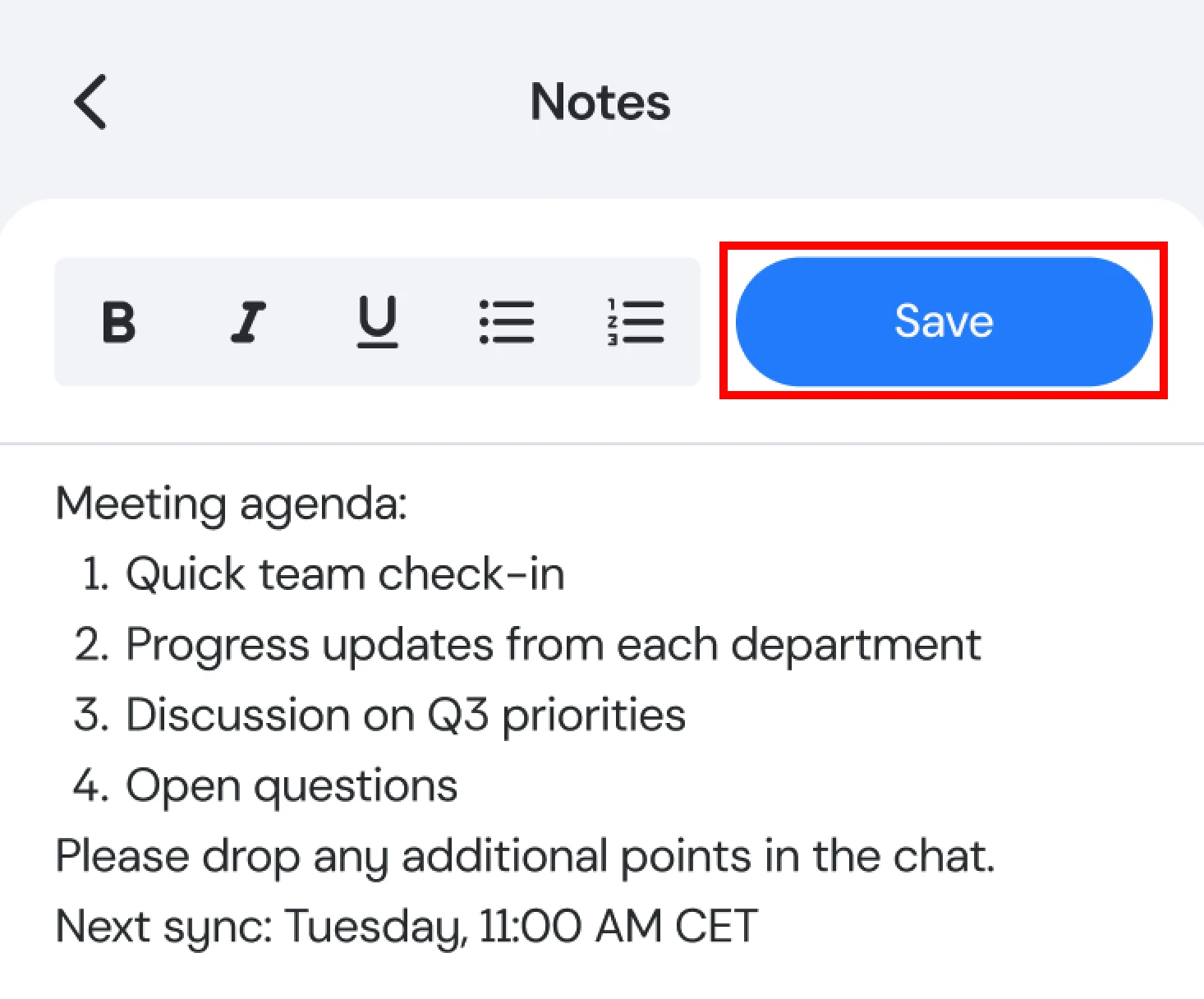
To make your notes visible to all participants, click the Save button. Saving acts as publishing - only saved notes are shared with everyone in the meeting.
Update Notes During the Meeting
You can edit the notes as many times as needed during the meeting. Just make sure to click Save each time to publish your latest updates.
Track Changes
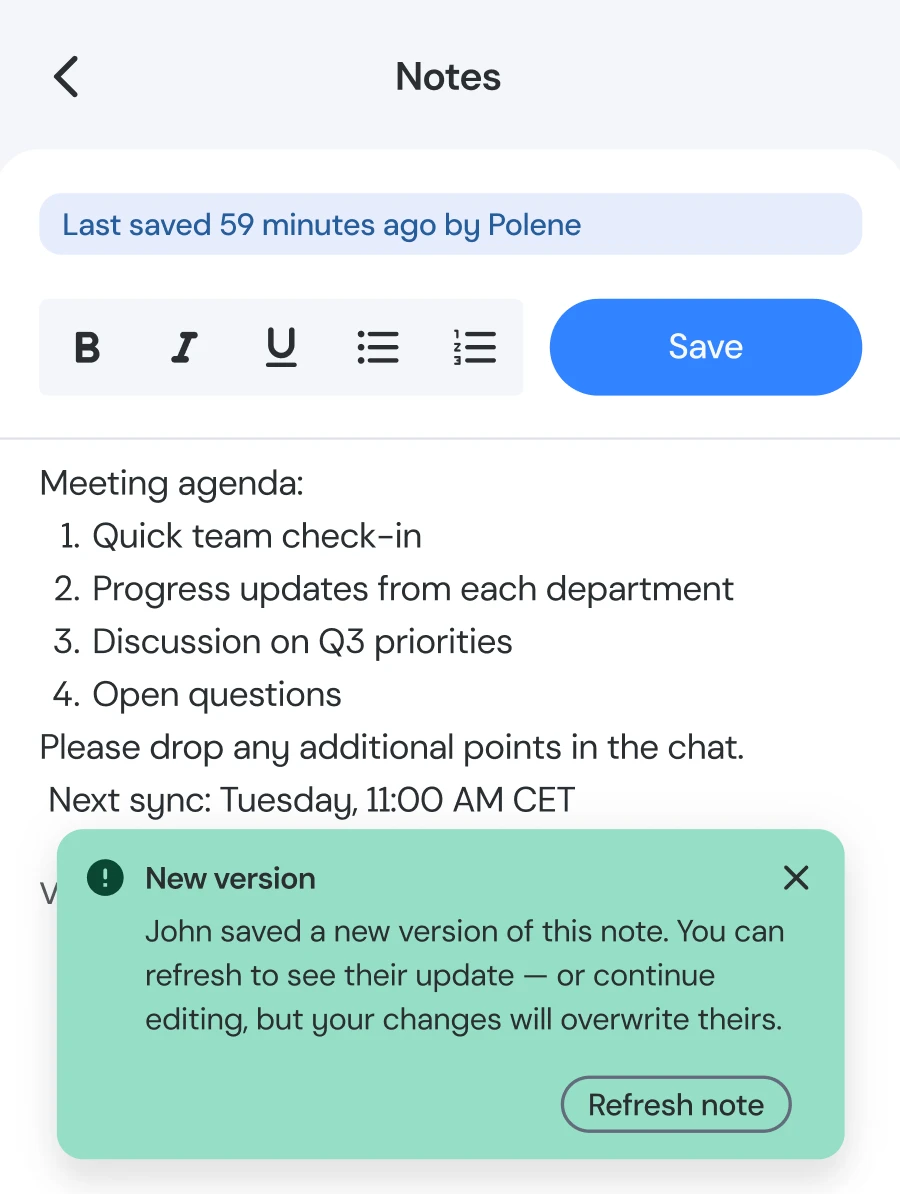
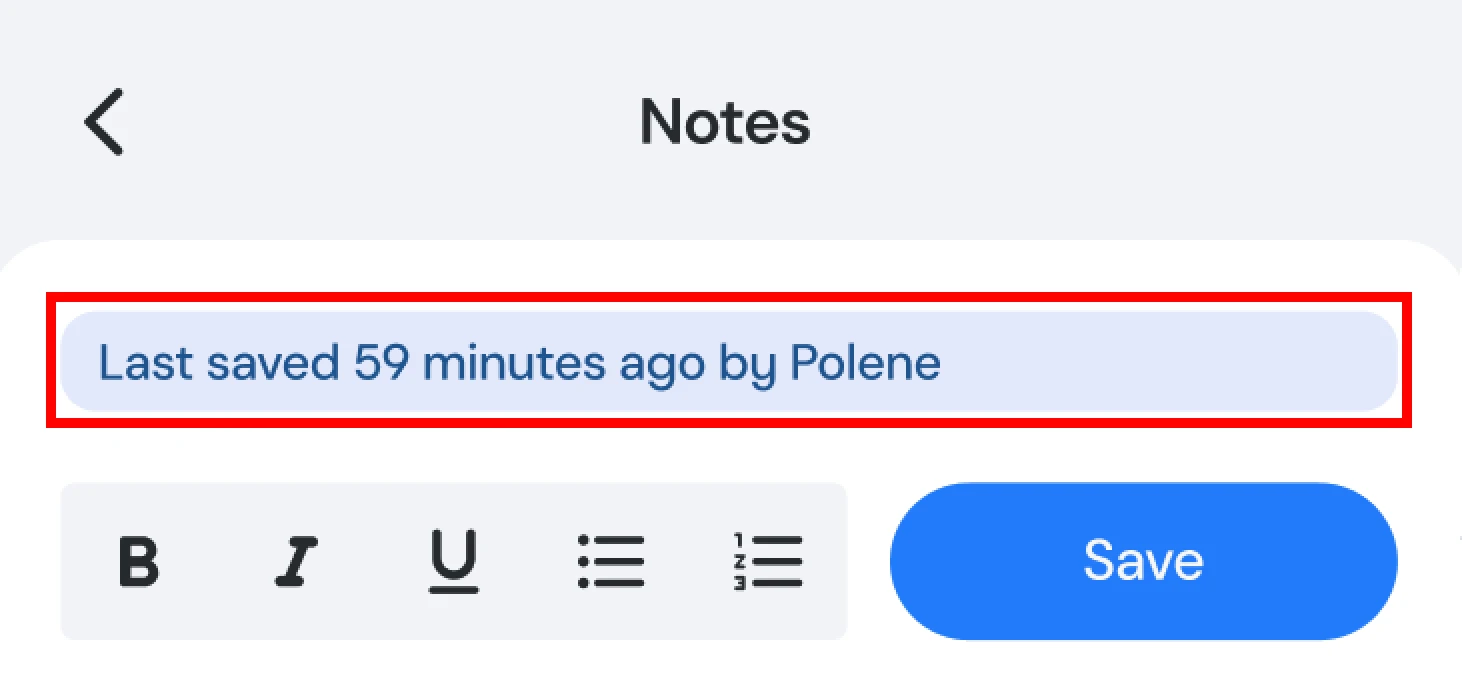
For better visibility, the top of the notes panel shows who last edited the notes and when the latest update was made.
Handle Version Updates
If someone else publishes a new version while you're viewing or editing the notes, you'll see a notification. You can choose to refresh the notes to see the latest version or overwrite them with your own changes.